Get Started with Iron Yard
Follow these simple steps to install and configure Iron Yard for your sales team

Need help with installation or have questions? Visit our Help Center for detailed guides and support.
Visit Help CenterStep 1: Install Iron Yard Chrome Extension
Download and install the Iron Yard extension from the Chrome Web Store. This extension works inside your CRM and shows Iron Yard's coaching right in your browser.
Installation Instructions:
- 1.Click the button below to access the Chrome Web Store
- 2.Click 'Add to Chrome' to install the extension
- 3.Click the Iron Yard icon that appears in your browser toolbar
- 4.Pin the extension: Click the extensions icon (puzzle piece), then click the pin beside Iron Yard to keep it visible in your taskbar
Step 2: Authorize CRM Connection
Connect Iron Yard to your CRM (HubSpot or Salesforce) to sync your deals and enable AI-powered coaching.
Authorization Steps:
- 1.Click on the Iron Yard icon in your browser toolbar
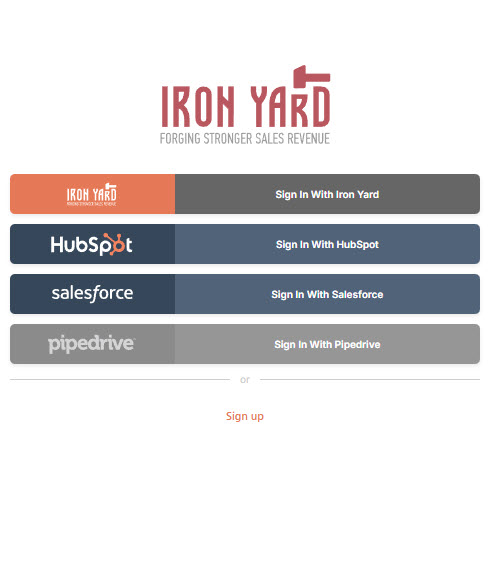
- 2.Choose 'Sign in With HubSpot' or 'Sign in With Salesforce'
- 3.If already logged in, you'll be automatically connected. Otherwise, login as normal
- 4.Click 'Connect app' to authorize Iron Yard to access your CRM data
- 5.You'll see a confirmation: 'Signed in successfully'
Preview of Authorization Screen:
Step 3: Configure Iron Yard Settings
Customize Iron Yard to match your sales process, targets, and methodology for optimal performance.
Important Prerequisites
- •You must be logged in to Iron Yard using your email address and password
- •Settings can be accessed during initial setup or anytime while using Iron Yard
- •Your home currency must match your CRM's home or base currency
Configuration Steps:
1Accessing Settings
- • Click on the Iron Yard icon in your browser taskbar
- • Click on the 'Hamburger' menu icon on the right side of the screen
- • Select the SETTINGS option from the menu
2Configure Win Rate
- • Win rate = (Number of Deals Won / Total Opportunities) × 100
- • Example: 10 won deals out of 50 opportunities = 20% win rate
- • Look back through your CRM to calculate your actual win rate
- • Move the slider to set your percentage
3Set Home Currency
- • Select your home currency from the dropdown menu
- • IMPORTANT: Must match your CRM's home or base currency exactly
- • Iron Yard will display deal values in both deal currency and home currency
4Enter Average Deal Size
- • Average Deal Size = average monetary value of closed deals
- • Example: 10 deals generating $100,000 = $10,000 average deal size
- • Enter the amount in your home currency
5Set Monthly Targets
- • Enter your target or quota for each of the next 3 months
- • Month 1 is the current month
- • Use your home or base currency for all values
6Configure Additional Settings
- • Location: Enter your Country (and State/Province if USA/Canada)
- • Default Deal Strategy: Select from Direct Sale, Partner Lead Sell, Co-Sell, etc.
- • Default Sales Approach: Select Normal Cycle, Trial, Land and Expand, etc.
- • Default Methodology: Select None, BANT, MEDDICC, Challenger, SPIN, or Gap Selling
- • Pipeline Probabilities: Set Min (e.g., 10%) and Max (e.g., 99%) to filter deals
7Save Your Settings
- • Review all your settings carefully
- • Click the SAVE button when ready
- • You'll see a confirmation message: 'Settings are updated'
Step 4: Sync Data for the First Time
Confirm Iron Yard is installed and working by syncing your deals from your CRM.
Important Prerequisites
- •You must have the Iron Yard Chrome Extension installed
- •You must be connected to your CRM (HubSpot or Salesforce)
- •You must have open deals in your name in your CRM
Sync Steps:
1Access the Iron Yard Extension
- • Click on the Iron Yard icon in your Chrome browser toolbar
- • The extension panel will open
2Navigate to Deal View
- • Look at the bottom of the extension screen
- • Click on the icon that is 2nd from the left (marked as icon 1 in the guide)
- • You will see '0 deals synced' displayed (marked as 2 in the guide)
3Initiate Data Sync
- • Click on the Sync icon at the top of the Chrome Extension (marked as 3 in the guide)
- • Iron Yard will begin syncing all open deals in your name from HubSpot or Salesforce
- • A progress indicator will show the sync status (e.g., 'Syncing... 65%')
- • Wait for the sync to complete
4View Your Synced Deals
- • Once the sync is complete, you'll see your total number of deals
- • Deals are automatically categorized by Health Score
- • Health categories include: Qualified (green), Stalled (yellow), Qualify Out (red), and N/A (gray)
- • Each category shows the percentage of your deals in that health status
- • You can click on any category to see the deals within it
5Verify Successful Installation
- • Confirm that your deal count has updated from 0 to your actual number of deals
- • Check that deals are displayed across the different health score categories
- • If you see your deals synced and categorized, Iron Yard is successfully installed and working
- • If you don't see any deals, verify that you have open deals assigned to you in your CRM
Step 5: Where to Go Next
Learn how to use Iron Yard's 4 main features in the right sequence for maximum impact.
The 4 Main Parts of Iron Yard
Follow this sequence to implement Iron Yard effectively in your sales process:
1Deal Coaching
Begin here. Our AI analyzes your opportunities in real-time and provides personalized recommendations structured as established sales methods such as MEDDICC, BANT and Challenger.
- • Deal Alerts: Setup Chrome extension to monitor deals and surface issues proactively
- • Deal Health & Velocity: Automatic assessment of Risk, Trust and Velocity from HubSpot or Salesforce data
- • Deal Coaching: Get advice on what to do in context of the Deal Assessment, both automatically and interactively
2Pipeline Management
Once familiar with Deal Coaching, look at the health of your pipeline as a whole.
- • Iron Yard categorises deals into: On track, Behind, At risk, or Needs attention
- • Drill into each category and work through deals to get them back on track
- • Qualify them out to keep your overall pipeline healthy and moving forward
3Pipeline Velocity
This is key for sustainable predictable revenue flow.
- • Get insights to speed up your sales process and eliminate delays
- • Consistently meet your revenue goals quarter after quarter
- • Regularly check velocity to understand tracking towards revenue targets
4Revenue Forecasting
Finally, use forecasting to keep your predictions accurate.
- • Iron Yard overlays on your HubSpot or Salesforce Forecast
- • Applies Deal Health Assessment (Risk, Trust, Velocity) to your Forecast
- • Highlights significant variations that will impact your attainment
- • Use this to keep your forecast on track